Home > Creating a Business Plan > Publishing and Sharing
Publishing and Sharing
To preview, publish or share your plan, click on "Publish & Share" link This opens several options for previewing, publishing, sharing or "tweeting" your business plan.
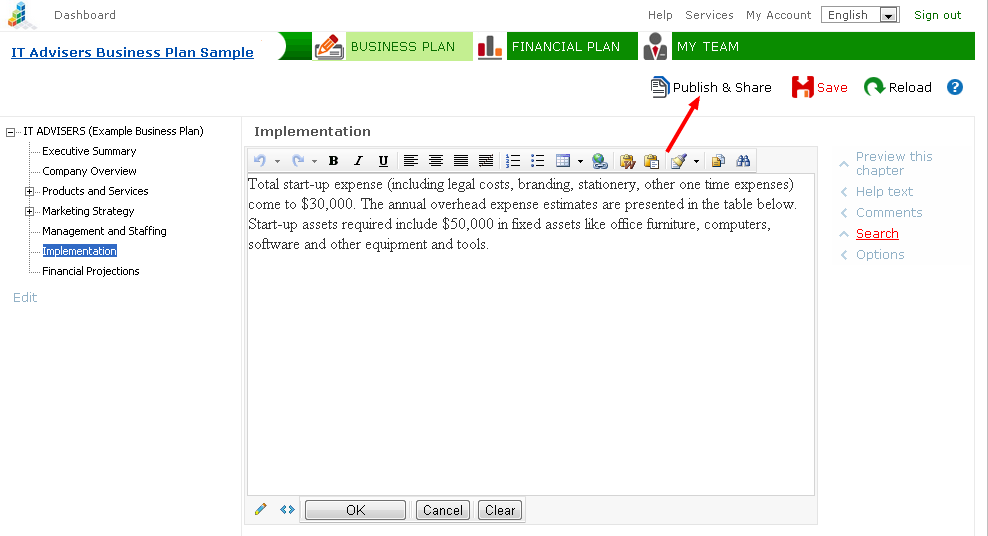
Publishing and Sharing options
Publish to HTML (preview)
|
The complete business plan document will be opened as a PDF-file. |
Publish into PDF file
|
The complete business plan document may be opened in a separate browser window with a click. This is a good way to get a quick preview of
the structure and content of a plan document, to make sure that texts,
tables, graphs and pictures are in their right places. |
| Publish into MS Word file |
The complete business plan document will be opened in the MS Word program. The opened file can be saved, printed, forwarded, etc.
NB! It is important to understand that when opening a business plan in an MS Word file, that file will, so to say, "have a life of its own". The Word file will be located on the user's own computer, and changes it do not affect the plan located in iPlanner!
It is recommended to open a business plan in MS Word only after the completion of the final version, i.e. a version that is considered suitable for printing, forwarding or formatting by using ample opportunities provided by MS Word.
When saving an MS Word file, make sure that the file type is appropriate (choose .DOCX, .DOC or .RTF). There are some MS Word versions that by default save in .HTM extension, which in this case is not really suitable.
|
Share and Send
|
Each business plan composed in iPlanner.NET has its own unique web address (URI). Thus, when presenting a business plan, providing its web address will be enough in most cases.
|
More about Share URI
The "Share and Send" option offers several opportunities for introducing, sharing or "tweeting" your business plan directly on the Web.
Share URI - it is a unique web address that allows direct access to a business plan resource in the internet.
As a side note, project owners have three main choices for the presentation, publication and sharing of the business plan:
- Firstly, publish the business plan as a file (.DOCX, .DOC, .RTF etc.), to forward or print it later.
- Secondly, add relevant persons to the project team, for example, as "viewers."
- Thirdly, share the web address for the business plan (Share URI), allowing relevant persons independent access to the plan document.
This includes a small nuance: when selecting option no. 2 - add person to the project team - it is always possible to remove said person from the list, taking away their right to access the latest version of the business plan. By contrast, sharing a business plan URI means that access can no longer be withdrawn. So you should be careful with whom you share your plan's web address!
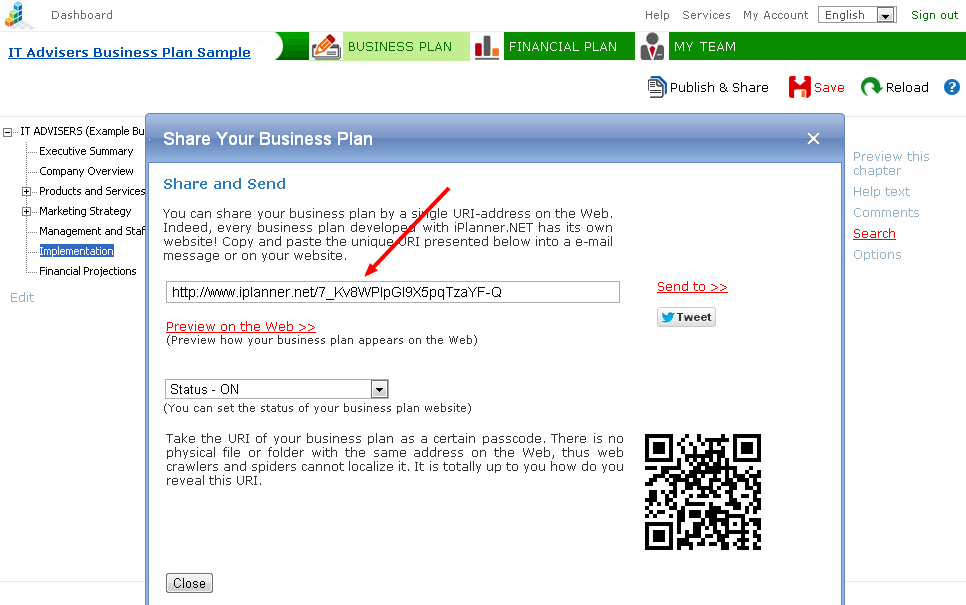
NB! The unique web address of a business plan should be regarded as a key of sorts. There is no file or a folder of the same name on the web, which means that robots and spiders cannot find it. The decision to share the the business plan web address is up to its owners.
Share URI is not visible to persons with viewer status.
See more
Saving and Team Work
Team Building
Plan-Builder
| 


